Points Path: My Favorite Free Travel Chrome Extension (and How We Use It With Google Flights)
Google Flights shows the cash price. Points Path shows where your points go further, without checking every airline one by one.

Some links in this post are affiliate links. If you use them, we may earn a commission at no extra cost to you. We only recommend what we use ourselves. Full disclosure.
Every flight we book for our family of six starts in the same place: Google Flights, with a free Chrome extension called Points Path running on top of it.
The two do different jobs. Google Flights shows the cash price. Points Path shows where the value is in points: how many airline miles the same flight costs, and whether you can get there by transferring points from a card like Chase, Amex or Capital One.
Before Points Path, checking points prices meant opening each airline’s website, one by one, and searching the same flight over and over. Now it shows up right next to the cash fare. It’s saved us hours, and it’s the reason it’s our favorite travel tool. Both are free.
Here’s exactly how we use them, step by step.
Step 1: Search every airport you can drive to
We live within an hour of three airports: Washington National (DCA), Dulles (IAD) and Baltimore (BWI). Google Flights lets you type “Washington, D.C.” and search all of them at once, or add each airport to the search yourself.
Prices between those airports can differ a lot for the same trip. If you live near more than one, always search them all.
Step 2: Search one way first
We always start with one-way searches, even for a round trip. It shows every option for each direction on its own, so we can pick the best outbound flight and the best return flight separately. Sometimes those are on different airlines, and one leg is cheaper in cash while the other is cheaper in points. On our last Disney trip, that’s exactly how we ended up flying JetBlue one way and Southwest the other.
Step 3: Filter to what you’d actually book
With four kids, we strongly prefer nonstop flights, so we usually start with the Nonstop filter on and exclude airlines we won’t fly. That clears out the noise. If a one-stop flight saves a lot, we’ll turn the filter off and take a look.

Step 4: Check the calendar before you pick a date
This is where the real money is. Click the date box and Google Flights shows the lowest one-way fare for every day of the month.
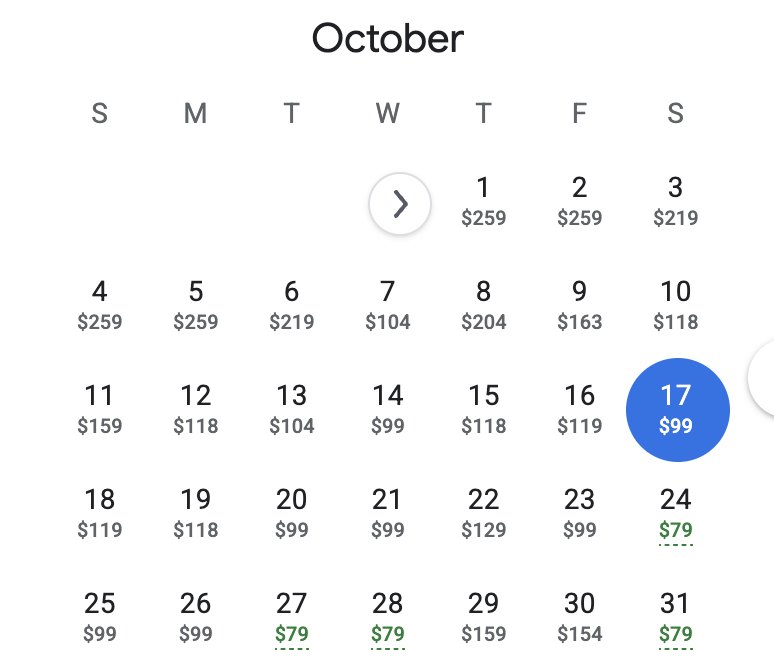
For this search, flying on October 17 was $99 a person. A week later it dropped to $79. Earlier in the month, some days were $259.
Multiply that by six. The gap between $259 and $99 is $960 for our family, one way. Do the same on the way home and a couple of days of flexibility can save well over a thousand dollars. You don’t need to be flexible by weeks. Even a day or two either side can make a big difference.
Step 5: Let Points Path find the points deals
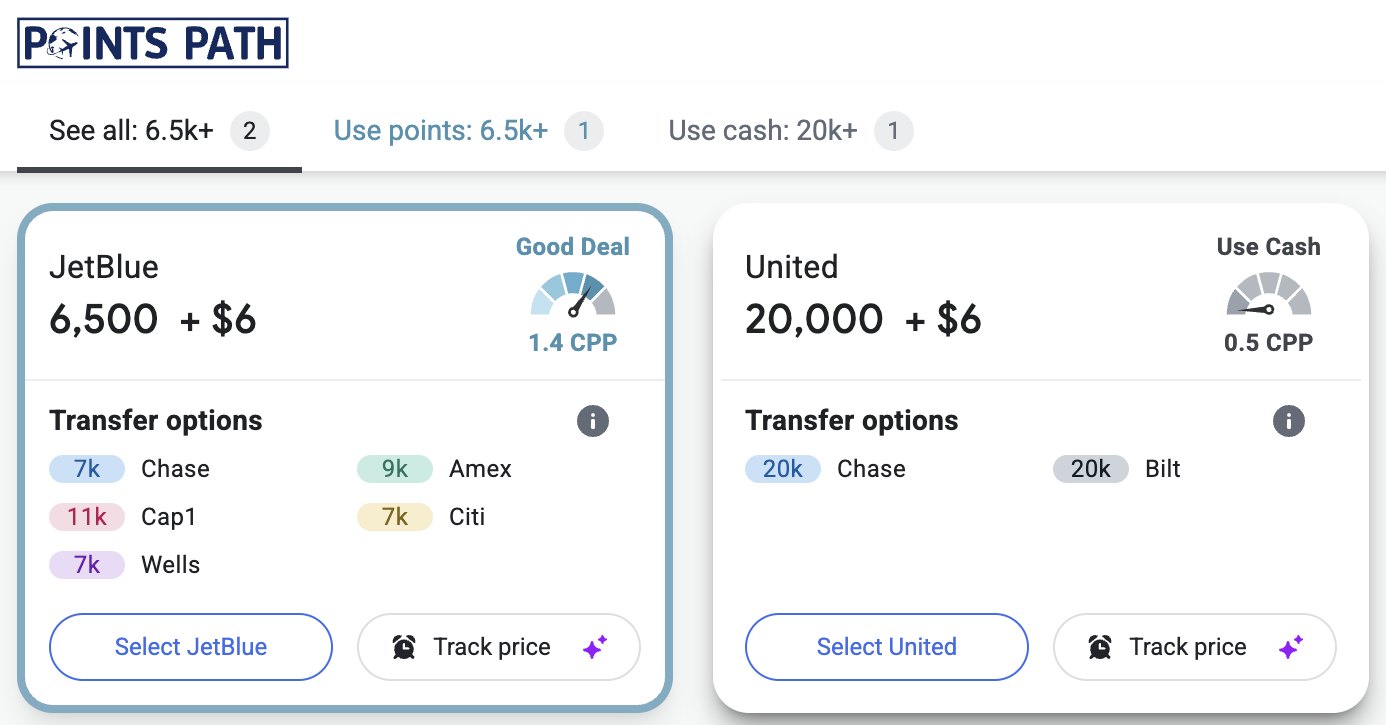
This is the part that saves us the most time. Points Path adds the points price next to every flight on Google Flights, so you can see at a glance where points beat cash. Click a flight and it shows the details.
Three things make it so useful:
- It rates the deal. It shows the cents-per-point value and labels each option “good deal” or “use cash.” Above, JetBlue at 6,500 points plus $6 is worth about 1.4 cents a point. United at 20,000 points is only 0.5 cents, so we’d pay cash.
- It shows which cards transfer. Under each option it lists the card programs that transfer to that airline, such as Chase, Amex, Capital One and Citi, and how many of their points you’d need. Our points are mostly Chase, so we can see right away which airline to transfer to.
- It checks every airline at once. No more logging into each airline’s site and searching the same flight five times.
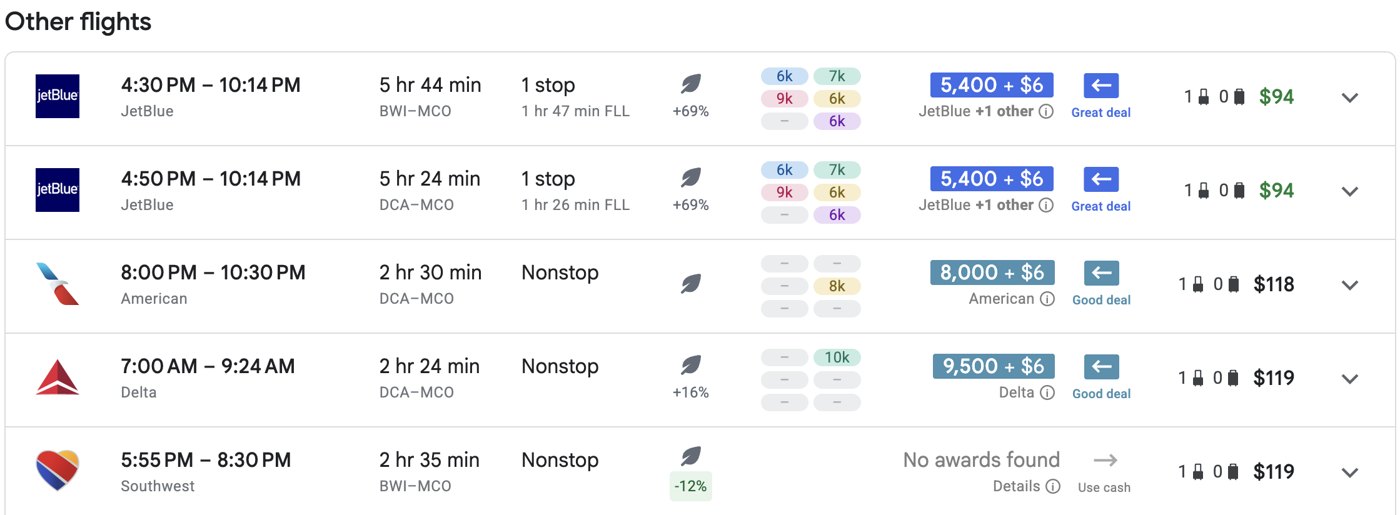
The best part is spotting the really cheap points deals. Alaska and JetBlue in particular sometimes price flights at just a few thousand points, far below what the cash fare would suggest. In our search above, a JetBlue flight to Orlando was 5,400 points plus $6, and Points Path flagged it as a “great deal.” Without the extension, we’d never have known to look.
A few things to know
- Southwest isn’t included. When Southwest is an option, we check Southwest.com separately.
- The free version covers the big U.S. airlines: American, Alaska, Delta, JetBlue and United. A paid version adds international programs, but we haven’t needed it for trips like Disney.
- Use it on a computer. It’s a Chrome extension, and it works best on a laptop or desktop.
- Prices shown are per person. Before transferring any points, open the airline’s site and confirm there are enough seats for your whole family at that price.
- Transfers are one-way. Once points move to an airline, they can’t come back, so find the seats first and transfer last.
- Search every airport within driving distance
- Search one way, each direction separately
- Start with nonstop and the airlines you’ll fly
- Check the calendar and shift a day or two if it saves money
- Let Points Path show where points beat cash
- Confirm seats for everyone, then transfer and book

This is the exact process behind our Disney trip, where flights for six cost us $67.20: How We Booked Disney Flights for Six (and a Rental Car) for $67.20.